Introduction
Nothing is more frustrating than experiencing lag, sudden FPS drops, or unexpected ping spikes during an intense gaming session. Whether you’re competing in fast-paced shooters, exploring open-world adventures, or battling in online multiplayer games, every millisecond matters. Even a brief stutter can mean the difference between victory and defeat.
Many gamers assume the only solution is upgrading expensive hardware or manually tweaking complicated Windows and network settings. While these methods can help, they often require technical knowledge, significant time, and additional money.
Fortunately, there is a much easier solution. Smart Game Booster is designed specifically to optimize your gaming PC with just a few clicks. It helps free system resources, reduce unnecessary background activity, improve gaming performance, and even optimize network connections for a smoother online experience.
Why Do Games Lag and Ping Spikes Happen?
Before fixing the problem, it’s helpful to understand why it happens.
Hardware-Related Issues
One of the most common causes of lag is excessive CPU and RAM usage. When numerous background applications are running, they compete with your game for valuable system resources. Antivirus scans, software updates, web browsers, and unnecessary startup programs can all reduce gaming performance.
Outdated graphics drivers may also prevent your GPU from delivering its best performance.
Network-Related Issues
Online games rely on stable internet connections. High latency, packet loss, overloaded Wi-Fi, or connecting to distant servers can all create noticeable ping spikes.
The good news is that software optimization can significantly improve both hardware resource management and network performance without requiring expensive upgrades.
What Is a Smart Game Booster?
Smart Game Booster is a PC optimization tool built specifically for gamers who want better gaming performance without spending hours configuring their computers.
Its main features include:
- One-click CPU and memory optimization
- Background process management
- Network acceleration
- Driver update assistance
- Game launcher
- Performance monitoring
- GPU Booster features for better graphics optimization
- Options to Overclock GPU (on supported hardware) for additional performance
The biggest advantage is its simplicity. Even beginners can optimize their systems without advanced technical knowledge.
How to Use Smart Game Booster to Fix Lag and Ping Spikes
Step 1: Download and Install
Visit the official FPS Booster website.
Download the latest version and complete the installation. The setup process is straightforward and only takes a few minutes.
Step 2: Open the Software and Scan Your PC
After launching the software, it automatically scans your computer.
The dashboard displays important information, including:
- CPU usage
- Memory usage
- Running processes
- System health
This gives you a quick overview of what may be affecting your gaming performance.
Step 3: Select Your Game
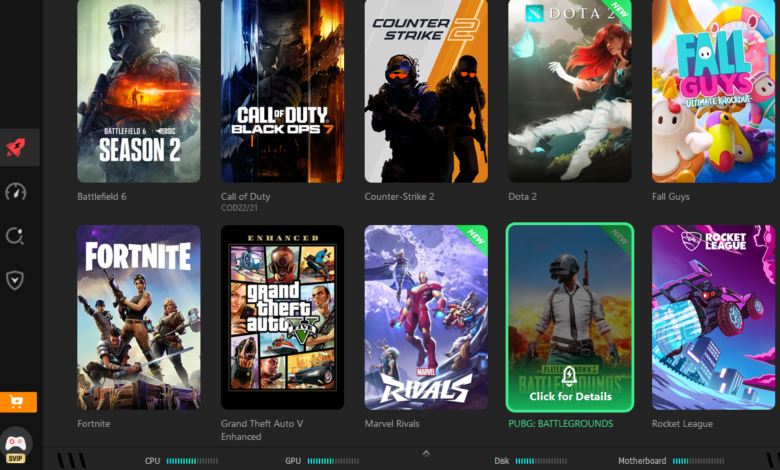
The software automatically detects installed games.
Simply choose the game you want to optimize from the list.
If a game isn’t detected automatically, you can manually add it in seconds.
Step 4: Boost your PC performance with one click
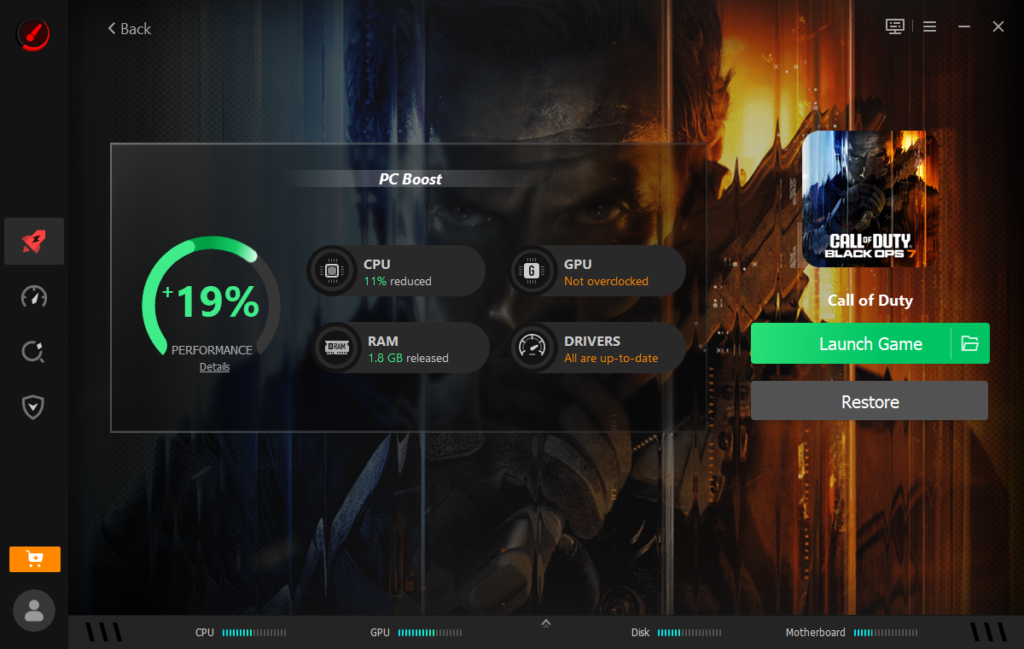
This is where the magic happens.
- Closes unnecessary background applications
- Frees up RAM
- Optimizes CPU usage
- Prioritizes your game
- Stops resource-heavy services that aren’t needed during gameplay
Instead of manually opening Task Manager and ending processes one by one, everything happens automatically.
Step 5: Enable Network Acceleration
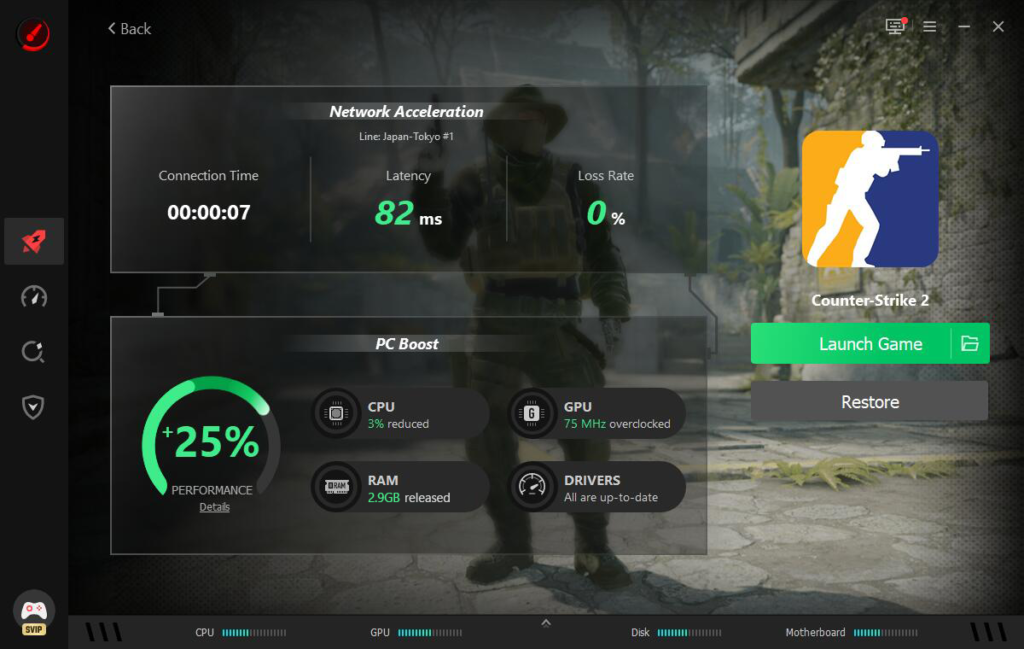
If your biggest problem is ping spikes rather than FPS drops, switch to the Network Acceleration feature.
Choose the closest server region such as:
- Asia
- Europe
- North America
Once enabled, the software attempts to improve routing efficiency, helping reduce latency and minimize packet loss where possible.
Although results vary depending on your internet provider, many users notice a more stable online connection.
Step 6: Launch Your Game
Once optimization is complete, launch your game directly from the software.
Pay attention to:
- Average FPS
- Frame stability
- Loading times
- Ping consistency
- Overall responsiveness
Many gamers notice smoother gameplay almost immediately.
My Experience
After trying Smart Game Booster on a mid-range gaming PC, I noticed the difference most in games where background applications usually caused small frame drops.
The optimization process only took a few seconds.
Once I launched my game, the experience felt smoother. FPS fluctuations became less noticeable, and occasional stuttering was reduced during busy gameplay scenes.
The network optimization feature also helped make my connection feel more stable when connecting to servers outside my region. While it didn’t eliminate latency completely, the ping remained more consistent during longer gaming sessions.
What impressed me the most was the convenience. Instead of manually closing multiple programs before every gaming session, everything was handled with a single click.
Additional Performance Features
Besides standard optimization, Smart Game Booster also includes advanced tools for experienced gamers.
GPU Booster
The built-in GPU Booster helps improve graphics performance by optimizing GPU-related settings and ensuring your graphics hardware performs efficiently.
Overclock GPU
For supported graphics cards, the software also offers options to Overclock GPU safely.
Overclocking can increase GPU performance, although users should always monitor temperatures carefully and make gradual adjustments rather than applying aggressive settings.
Tips and Reminders
While Smart Game Booster can noticeably improve gaming performance, it’s important to have realistic expectations.
- It cannot replace a hardware upgrade if your PC no longer meets a game’s minimum requirements.
- Network acceleration depends on the quality of your internet connection.
- Keep graphics drivers updated.
- Close unnecessary browser tabs before gaming.
- Run optimization before starting your game rather than switching between multiple games during a session.
- Restart your PC occasionally for the best overall performance.
Final Verdict
If you’re looking for an easy way to reduce lag, stabilize FPS, and minimize ping spikes without spending hours adjusting Windows settings, Smart Game Booster is worth considering.
It’s especially useful for:
- Casual gamers who want quick performance improvements
- Players using older or mid-range PCs
- Gamers playing on cross-region servers
- Anyone who wants one-click optimization instead of manual tweaking
Rather than replacing expensive hardware, it helps your existing system perform more efficiently by freeing resources and optimizing your gaming environment.
If you’d like to see whether it improves your gaming experience, you can try the free version of Game Booster and compare your gameplay before and after optimization.